Fart Together Friends Can't Join? 5 Things to Check
A friend can't join your Fart Together raft? Work through these five checks in order, from the cheapest fix (Steam friends list) to the last resort (network).
Last updated:
Fart Together join failures almost always happen because players are running different Steam apps—specifically, the free demo versus the full game—or because one player's Steam status is offline.
- Demo and full game are separate Steam apps and cannot cross-play
- Invites rely entirely on the Steam friends list
- There are no in-game server browsers or redeem codes
Doesn't apply when: Unverified whether regional Steam download server mismatches affect lobby visibility, not confirmed by the developer.
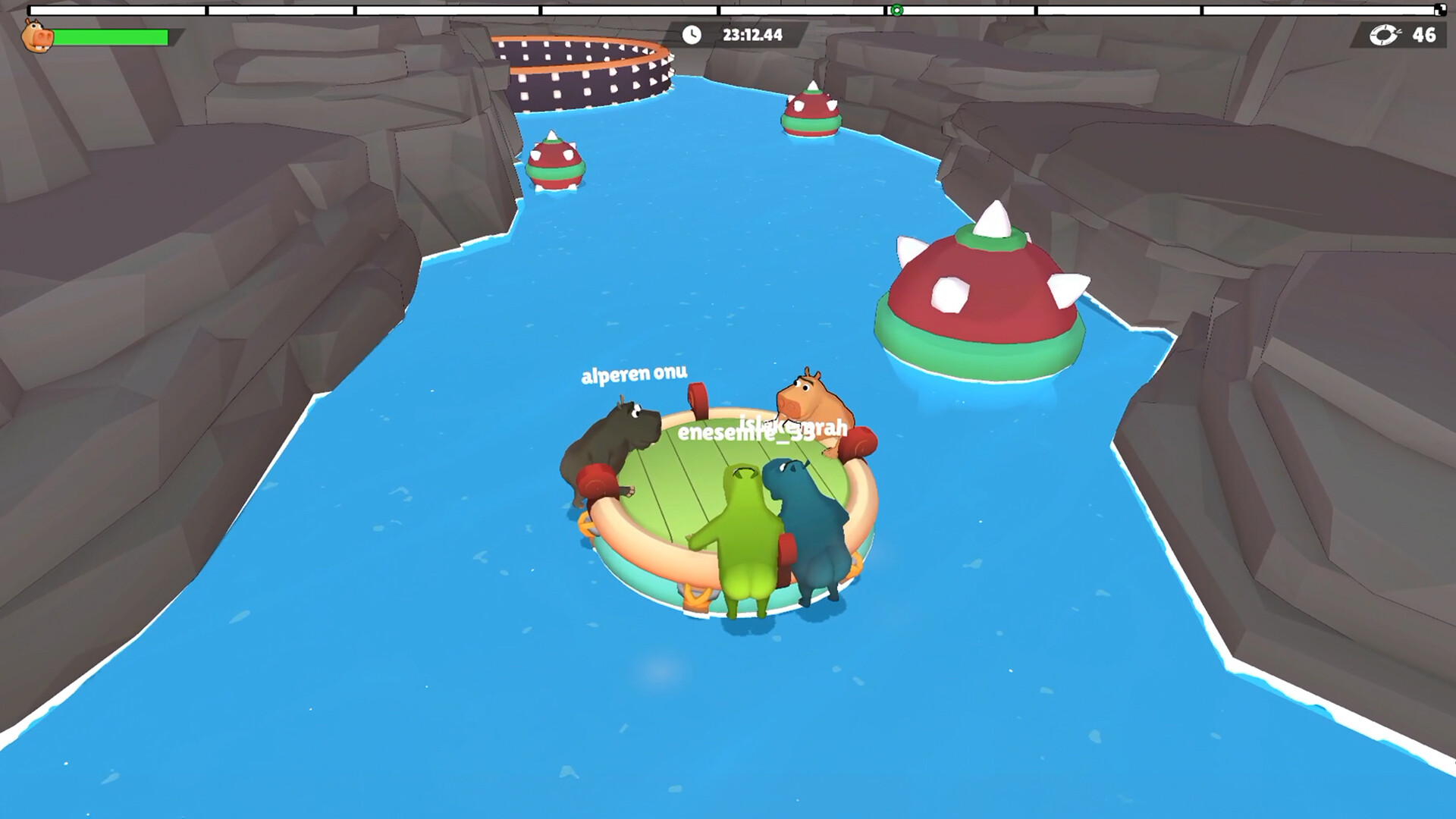
Source note: Everything on this page that describes the game comes from the official Steam listing and from our own sessions in the demo (app 5208630, checked 24 October 2026). Steps that belong to Windows or the Steam client are standard client behaviour, not game features. Where a fix would require a setting the developer has never documented, we say so instead of inventing a menu name.
Short answer
The usual cause is that both players are not on the same Steam build: one has the demo (app 5208630) and the other has the full game (app 5117550, releases 29 October 2026), or one is offline. Confirm the app and the online status first, then work down the list. If your friend cannot see your lobby for this physics-based co-op raft game for Windows PC on Steam by GamesMrkt, verify your Steam app builds immediately.
Check these in order
| # | Symptom | Most likely cause | How to verify | Fix |
|---|---|---|---|---|
| 1 | Lobby does not appear or invite fails instantly | Running different Steam apps (Demo vs Full Game) | Look at the Steam Library title next to the game icon to see if it says "Demo" (app 5208630) or the full game (app 5117550) | Both players must install the exact same Steam app version before attempting to join |
| 2 | Friend shows as offline in Steam overlay | Steam Friends network is disconnected | Look at the Steam friends list window to see if your status or your friend's status is set to Offline or Invisible | Click your profile name in Steam and change your status to Online |
| 3 | Join button is greyed out or unresponsive | Steam overlay is disabled | Look at Steam settings to see if the in-game overlay box is unchecked | Enable the Steam overlay in Steam settings, as invites go through the Steam friends list |
| 4 | Game fails to launch or connect at startup | Windows firewall or third-party antivirus blocking Steam connections | Look at Windows security history or notification center for blocked application pop-ups | Add Steam and Fart Together to your firewall exclusion list |
| 5 | Persistent connection dropouts | Corrupted local game files | Look at Steam Library properties and verify integrity of local game files | Reinstall the game files entirely through your Steam Library |
The most common point of failure for joining friends in Fart Together is a version mismatch. Because the free demo is a separate Steam app (5208630) from the full game (5117550, releases 29 October 2026), players on the demo build cannot connect to lobbies hosted on the full game build. Both players must ensure they are launching the exact same application from their Steam Library.
The second most frequent issue relates to the Steam friends list. Since Fart Together relies entirely on Steam invites and has no separate account system, crossplay login, or server browser, both players must be logged into Steam and visible to each other. If you are unsure which build you own, consult our guide on which app is real before troubleshooting further.
If none of that worked
If you have verified that both players are running the identical Steam app build, that both are online in the Steam friends list, and that your firewall is not blocking Steam, you may be running into network routing or ISP issues. Because Fart Together is a physics-based co-op raft game for Windows PC on Steam by GamesMrkt, it depends entirely on Steam's peer-to-peer networking architecture. We have unverified knowledge regarding whether specific NAT types or router configurations block these connections, not confirmed by the developer.
When basic checks fail, you should consult Steam Support rather than this independent fan wiki, as account-level network blocks and Steam client bugs are outside our scope. You can raise a ticket directly through Steam Support for assistance with Steam networking and invite failures. For any remaining gameplay questions not covered here, check our open questions guide.
Related
- /guide/fart-together-which-is-real
- /multiplayer/fart-together-how-to-join-friends
- /guide/fart-together-open-questions
Why did my Steam invite never arrive versus why did I ignore it in Fart Together?
When troubleshooting connection issues in Fart Together, it helps to distinguish between a Steam invite that completely failed to transmit and one that arrived safely but was left sitting in your notifications unaccepted. If your friend insists they sent an invite for this physics-based co-op raft game for Windows PC on Steam by GamesMrkt, but your overlay remains totally empty, you are dealing with a delivery failure. This usually happens because your Steam status is inadvertently set to offline or invisible, or because the Steam overlay is disabled in your global client settings. Without an active Steam friends connection, the invite data has literally nowhere to route.
Conversely, if the Steam notification chime sounds and the invite pop-up successfully appears in the corner of your screen, but you still cannot join, the issue shifts entirely to human error or a subtle software block. Sometimes players click past the notification, fail to press accept in time, or accidentally dismiss the prompt while loading into another menu. Furthermore, if you attempt to accept an invite while your game client is still booting up or stuck on a loading screen, the click will often register as nothing, leaving the prompt stranded. Always double-check your physical Steam chat window to see if the pending invite link is still clickable, and ensure both players are actively paying attention to the overlay prompts before blaming the network for a dropped connection.
Fart Together troubleshooting FAQ
Why can my friend not see my Fart Together lobby?
Fart Together lobby visibility issues usually happen because you and your friend are running different Steam app builds. The free demo (app 5208630) and the full game (app 5117550) are entirely separate apps and cannot connect to each other. Ensure both players have the exact same version installed from Steam.
How do I invite friends to play Fart Together?
Fart Together invites go directly through the Steam friends list, as there is no separate account system or in-game server browser. Open your Steam overlay while in a session, right-click your friend's name in your friends list, and select the option to invite them to your game.
Are there any redeem codes to join Fart Together?
There are no redeem codes for Fart Together. All multiplayer sessions are initialized via Steam friends list invites. If someone gives you a code to join a lobby, it is not a valid method for this physics-based co-op raft game.
Can I play Fart Together demo players if I own the full game?
You cannot play Fart Together with demo players if you are running the full game. The demo is a separate Steam app (5208630) and does not cross-play with the full release (app 5117550, releases 29 October 2026). Both players must run the same app build to share the same inflatable raft.
Where is the server browser in Fart Together?
There is no server browser in Fart Together. All 2-4 players connect directly through Steam friends list invites. Because the game features physics-based co-op where every player's input acts on the same raft, all connections are handled peer-to-peer via Steam rather than dedicated public servers.
If the lobby itself is the part failing rather than the invite, the four-player co-op setup walkthrough covers who should host; and if you only have the free build, the Steam listing page shows which app you should be running.
Related Guides
Fart Together Discord Community and Steam Co-Op Game Guide for Players
Join the Fart Together Discord and jump into the chaotic 2-4 player physics-based Steam co-op game by GamesMrkt releasing October 29, 2026.
Fart Together Game Online: The Ultimate Physics-Based Co-Op Raft Adventure on Steam
Discover the fart together game online by GamesMrkt. Learn how 2–4 players steer a shared raft using physics-based gas propulsion in co-op.
Fart Together How to Join Friends: Ultimate Co-Op Setup Guide for the Physics-Based Raft Adventure
Learn fart together how to join friends in GamesMrkt's physics-based co-op party game. Discover online multiplayer setup, system specs, and raft tips.
Fart Together How to Play Multiplayer: A Complete Guide to Co-Op Raft Physics and Teamwork
Learn fart together how to play multiplayer with friends in this physics-based indie co-op game. Master raft controls, timing, and chaotic team tactics.
Fart Together Play Together: The Ultimate PC Co-Op Raft Survival Experience on Steam
Discover Fart Together play together mechanics, system requirements, and physics-based co-op gameplay for PC. Get ready to steer rafts with friends.
Fart Together Stuck on a Loading Screen? Check These
A Fart Together lobby that never finishes loading is usually a network or Steam-session problem. These five checks go from cheapest to most invasive.